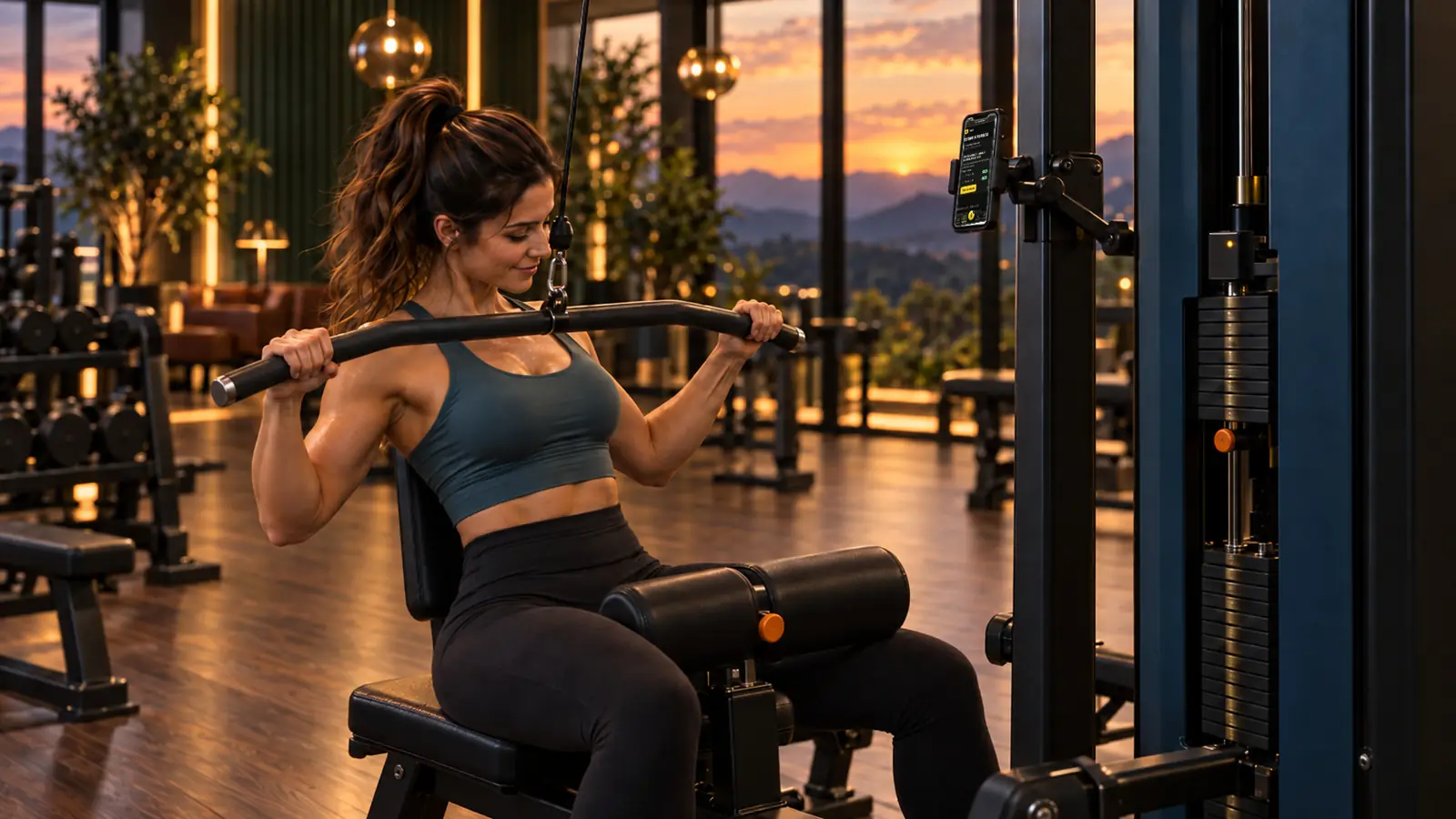
The member journey · Léa arrives at your gym
Scan, log, progress.
The training app your gym offers its members: a QR code on every machine, sets logged in two taps, progress week after week. It opens in the phone's browser and can be added to the home screen.
Scan
A QR code on every machine.
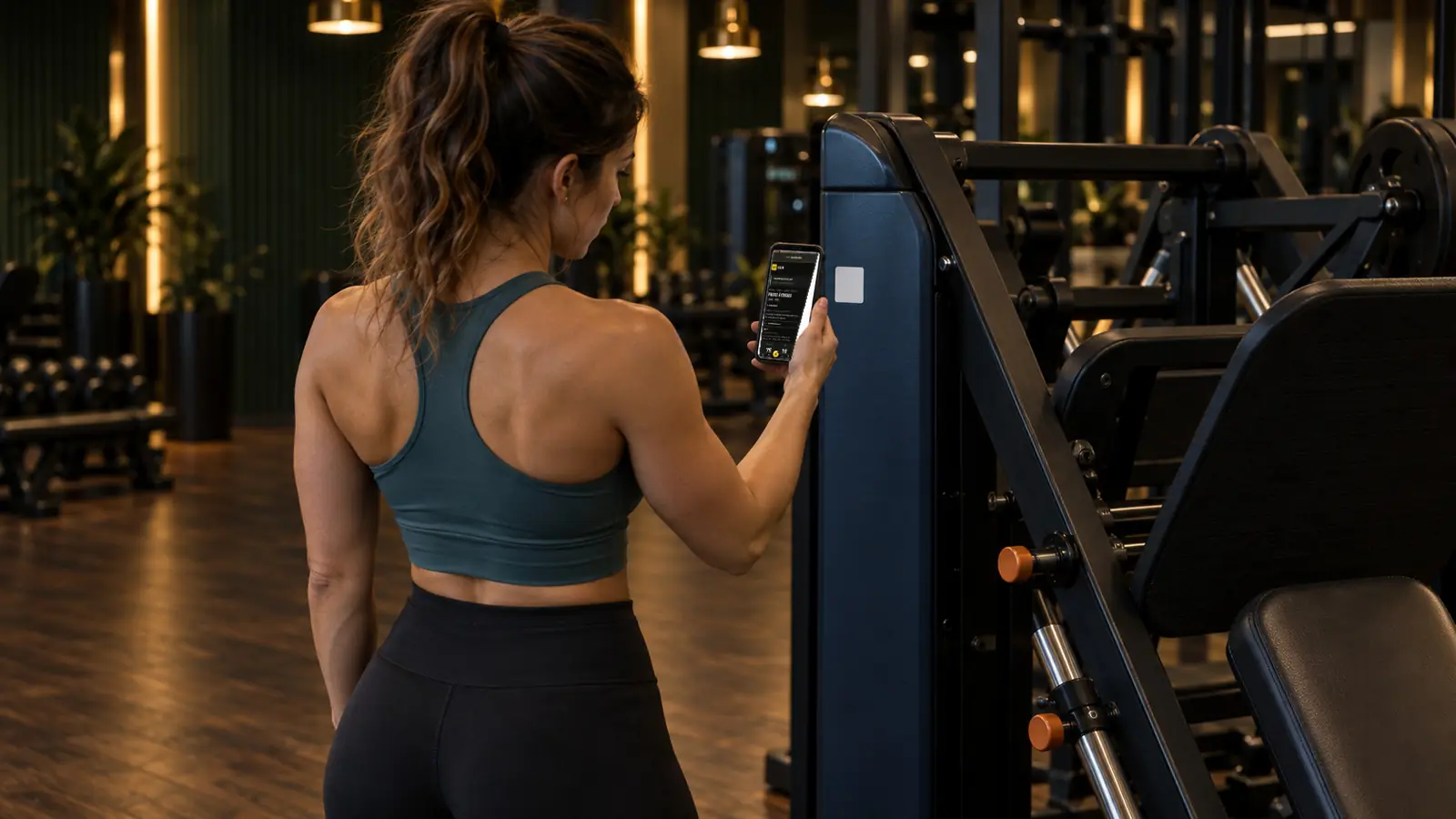
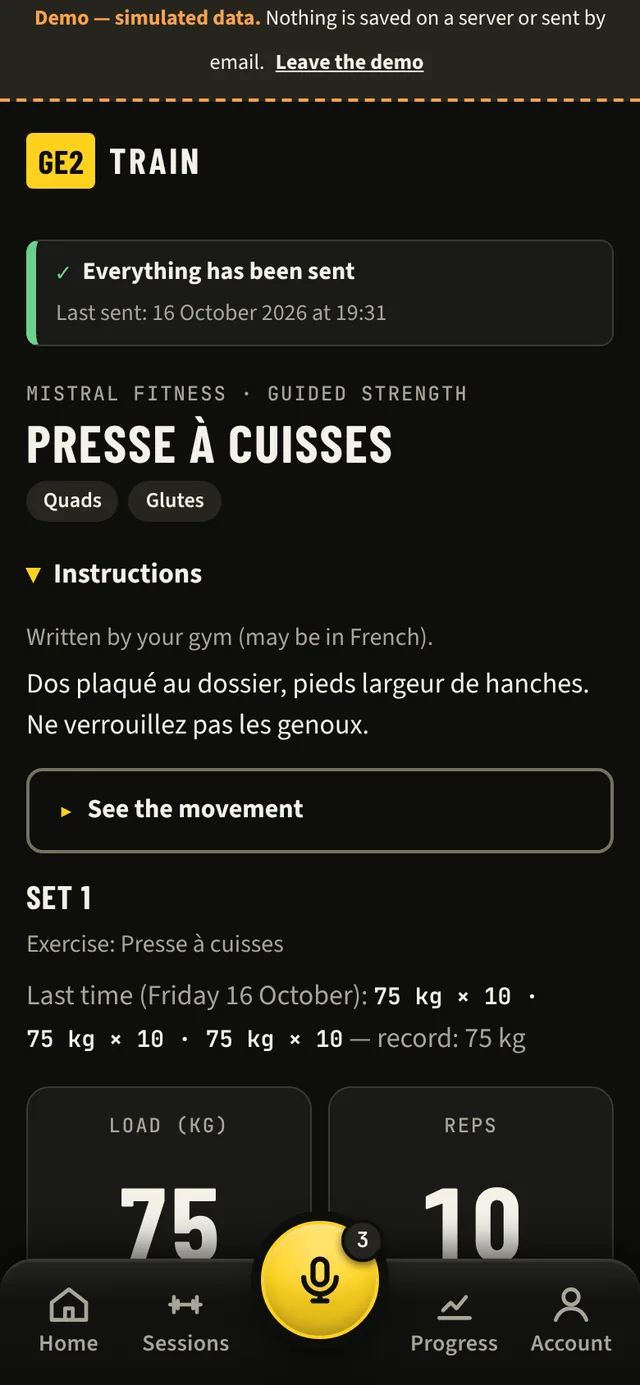
Léa scans the QR code stuck on the machine with her phone's camera: the right page opens, with the muscles worked, the instructions and what she did last time.
Works with every brand of machine: the QR code identifies the machine, with no box or cable.
Log
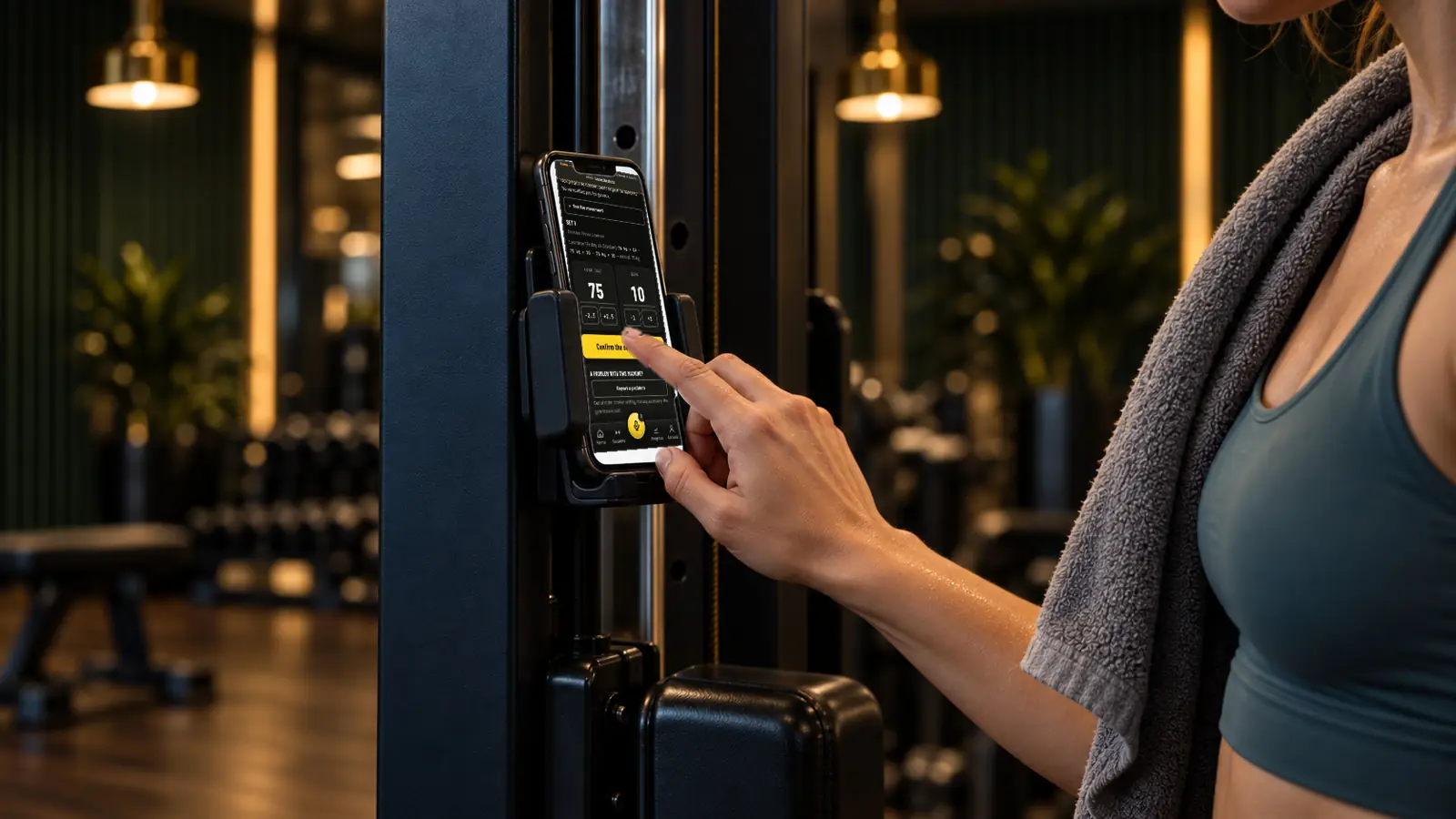
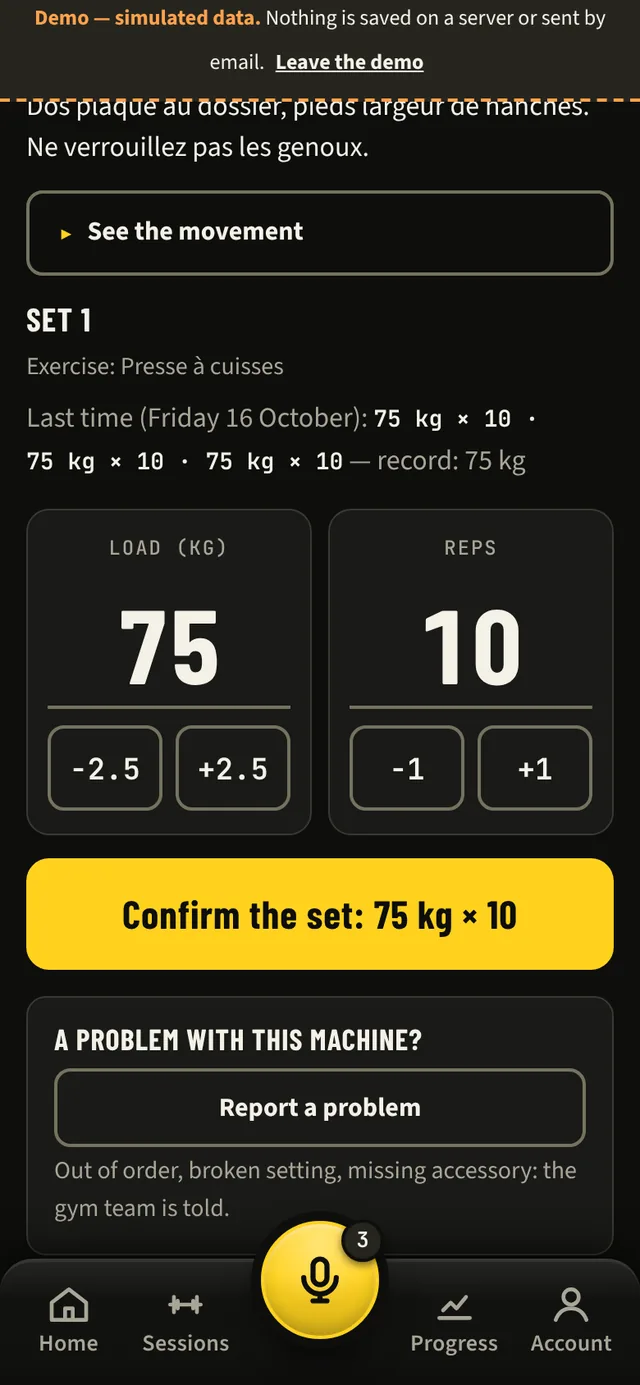
Two taps, set logged.
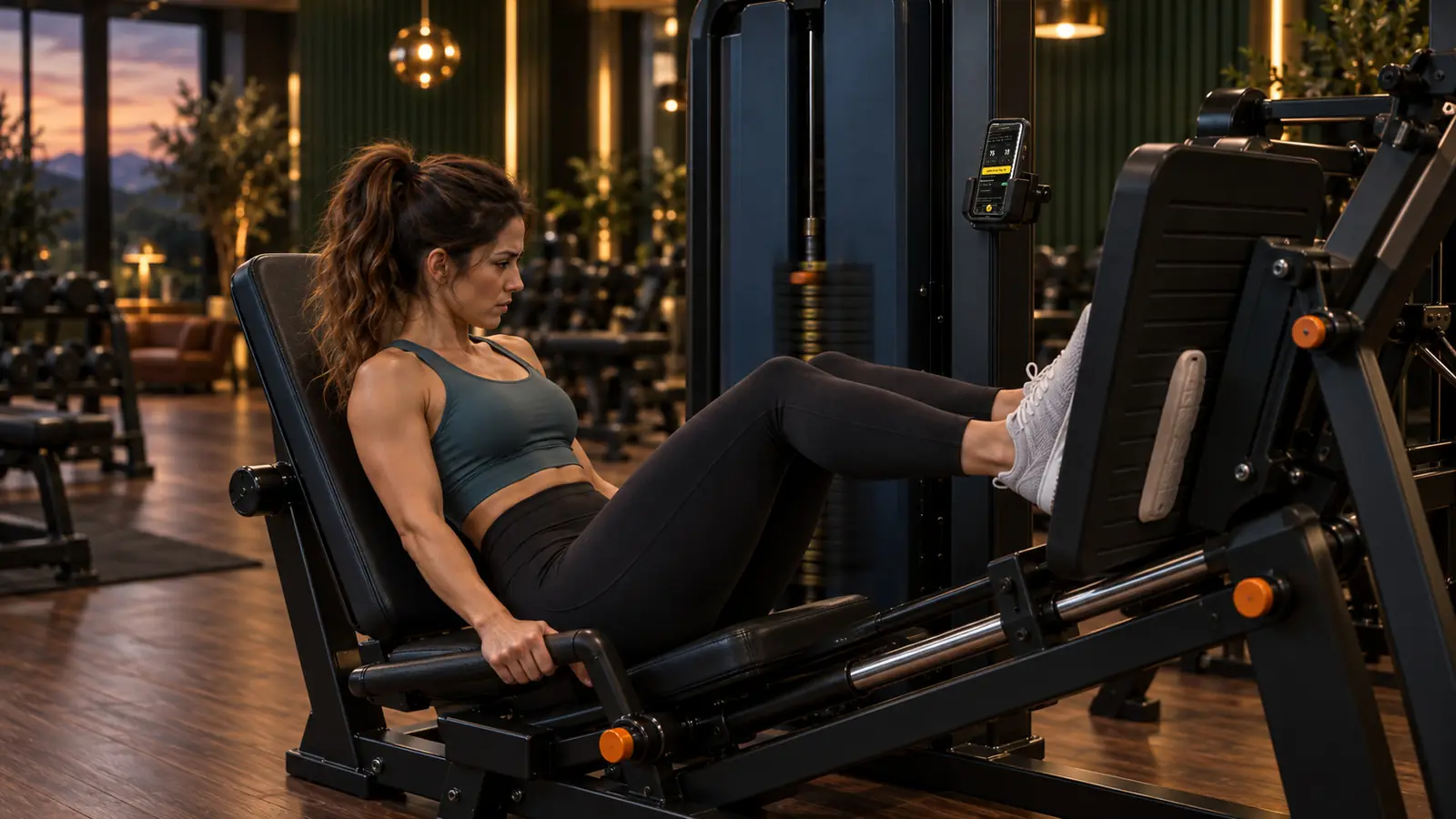
Last time's weight and reps are suggested. She adjusts if needed with big buttons (+2.5 kg, +1 rep) and confirms: two taps at most, without breaking the rhythm of her session.
Even offline
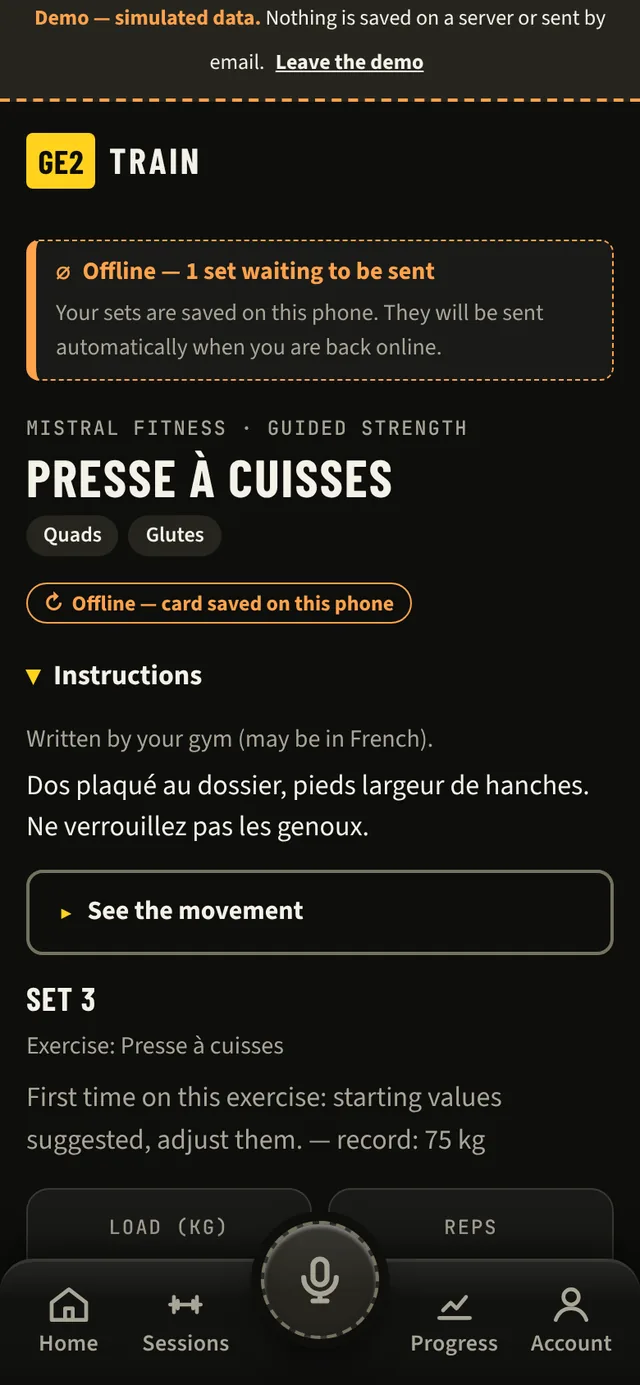
Logged, even offline.
Poor signal at the back of the gym? The set stays on the phone, marked “waiting to send”, then goes through on its own when the connection returns, with no duplicates. Machines already opened stay available offline.
Progress
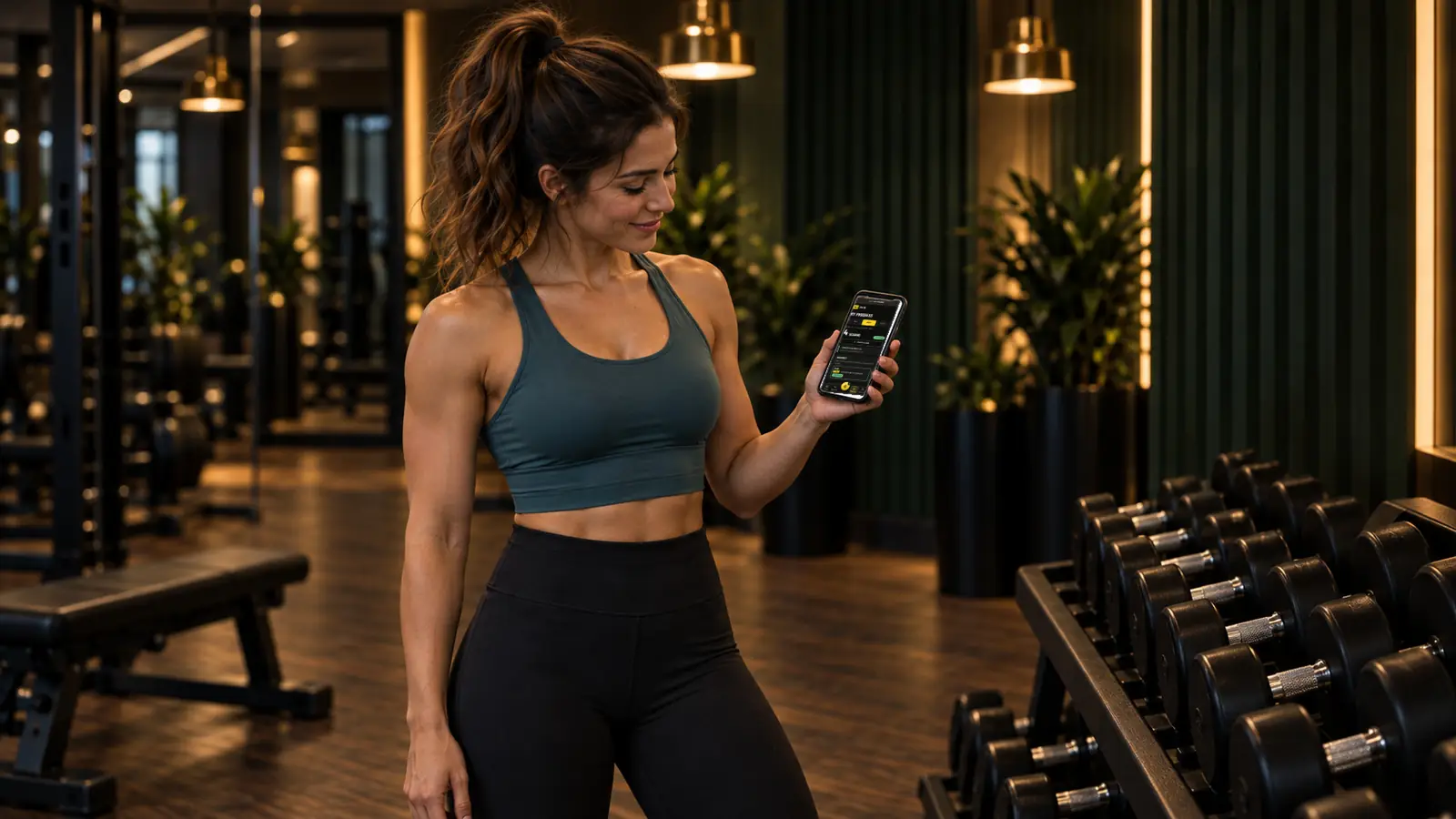
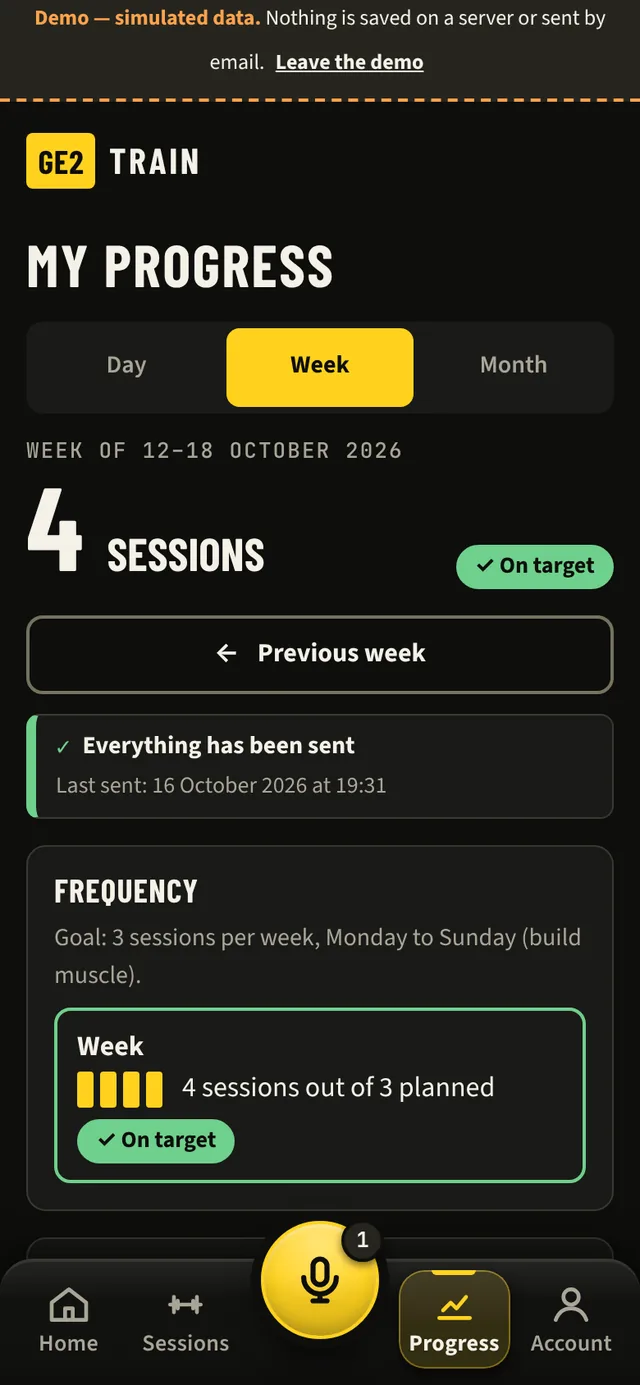
Week after week, she sees her progress.
Sessions per day, week and month, personal bests per exercise, a weekly session goal and consistency over eight weeks: she has a real reason to come back the following week.
The app's tip
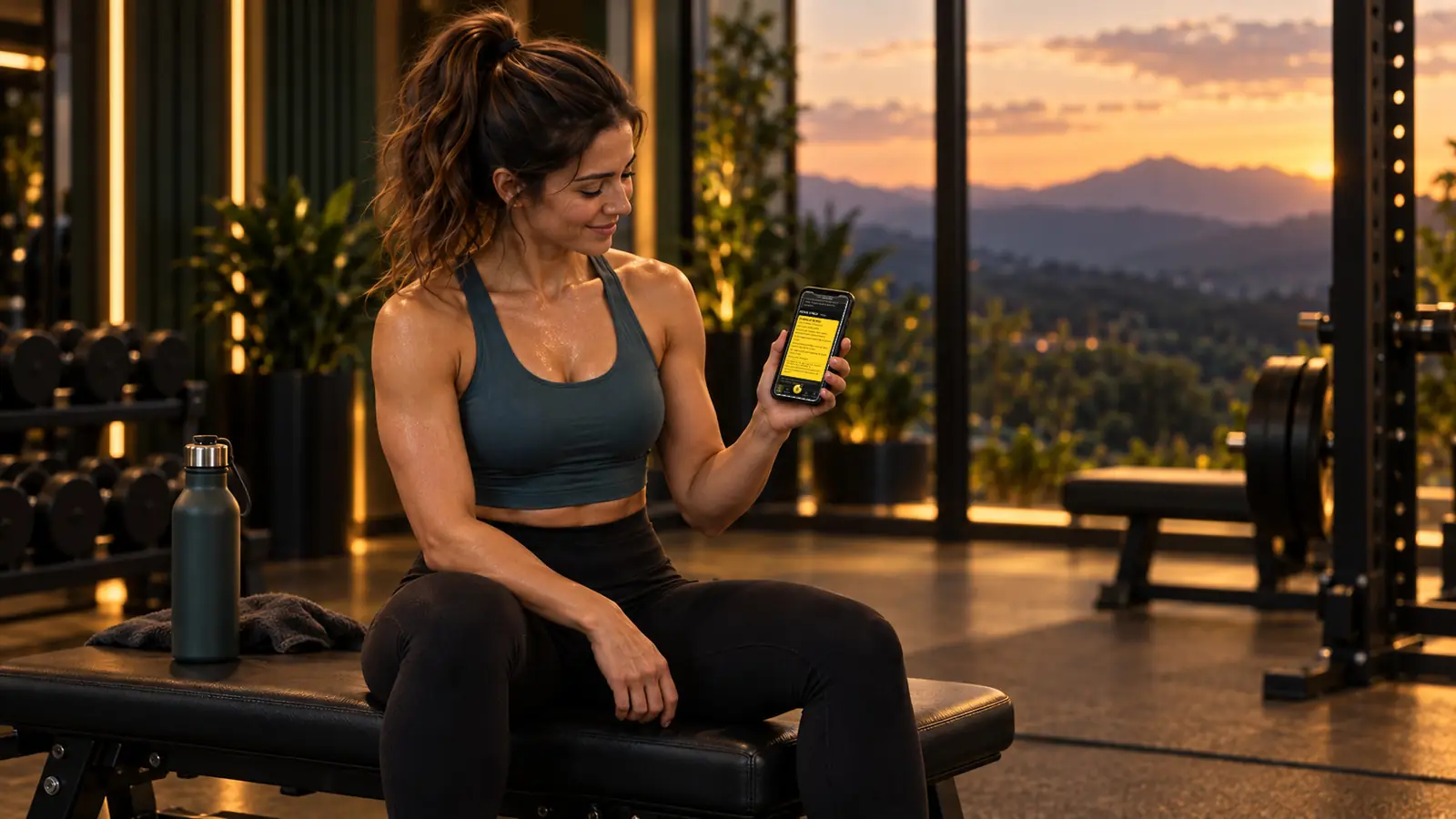
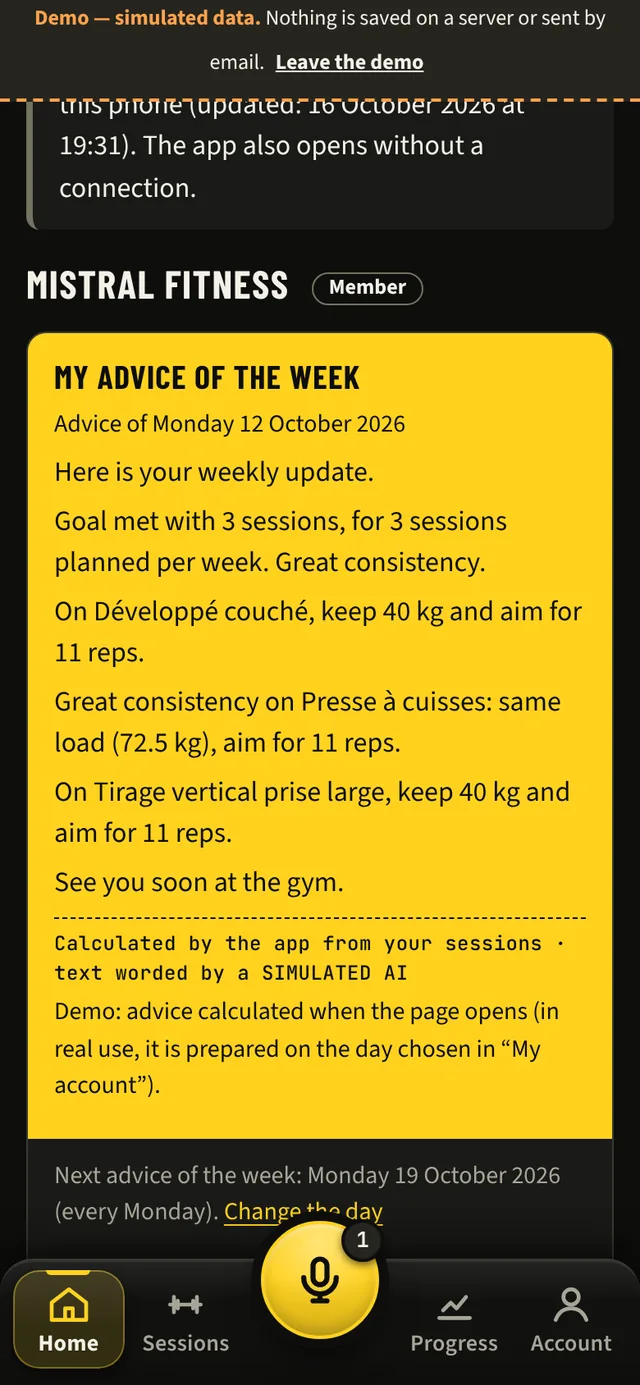
Every week, the app's tip.
Worked out by the app from her sessions, with simple progression rules: weight to keep or increase, reps to aim for, consistency. She chooses her day, and can ask for “A tip now” once a day.
An AI can only rephrase the message, never change the decision. No medical advice: in case of pain, the app refers her to a coach at the gym or a health professional.
On the machine page
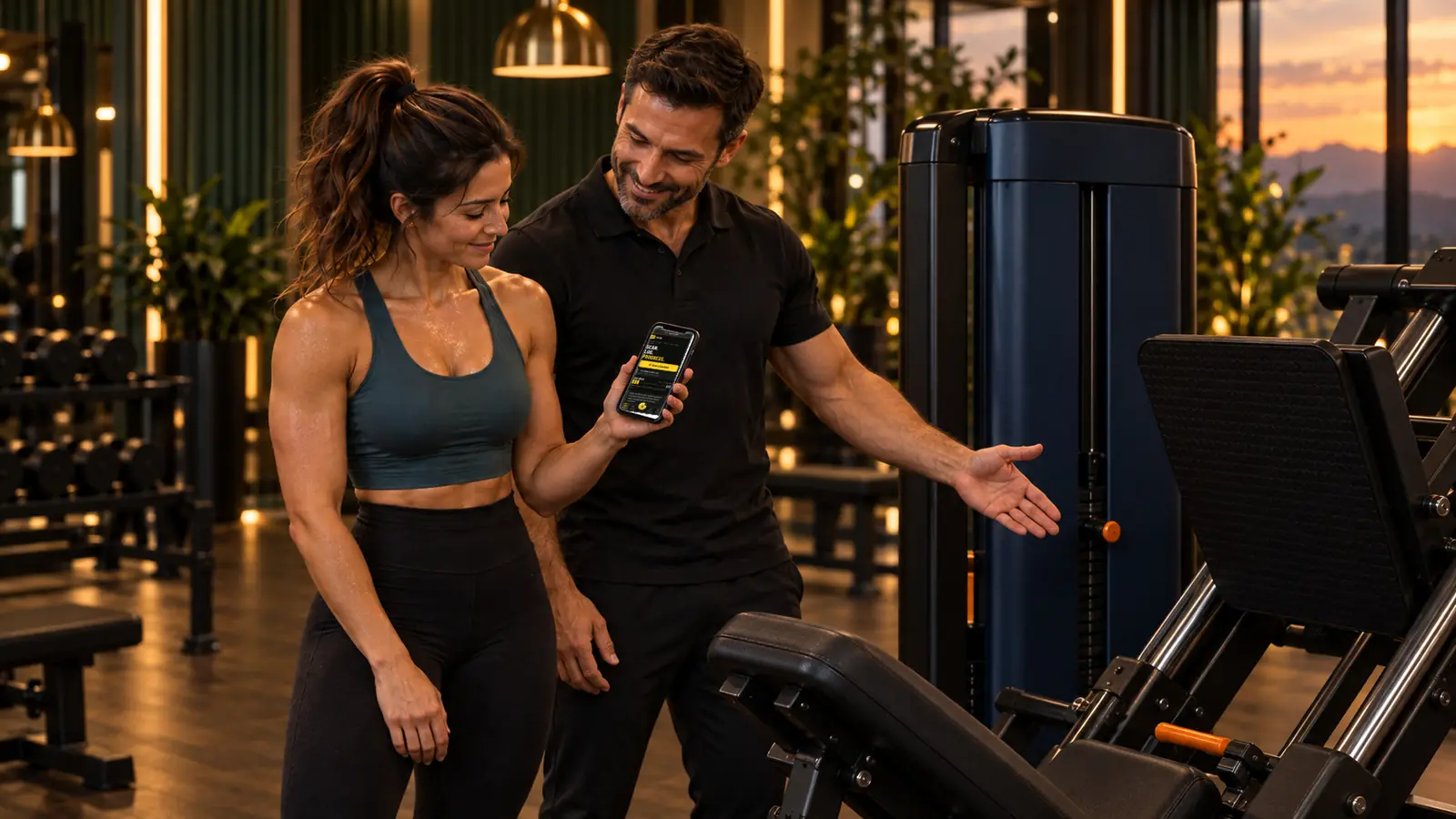
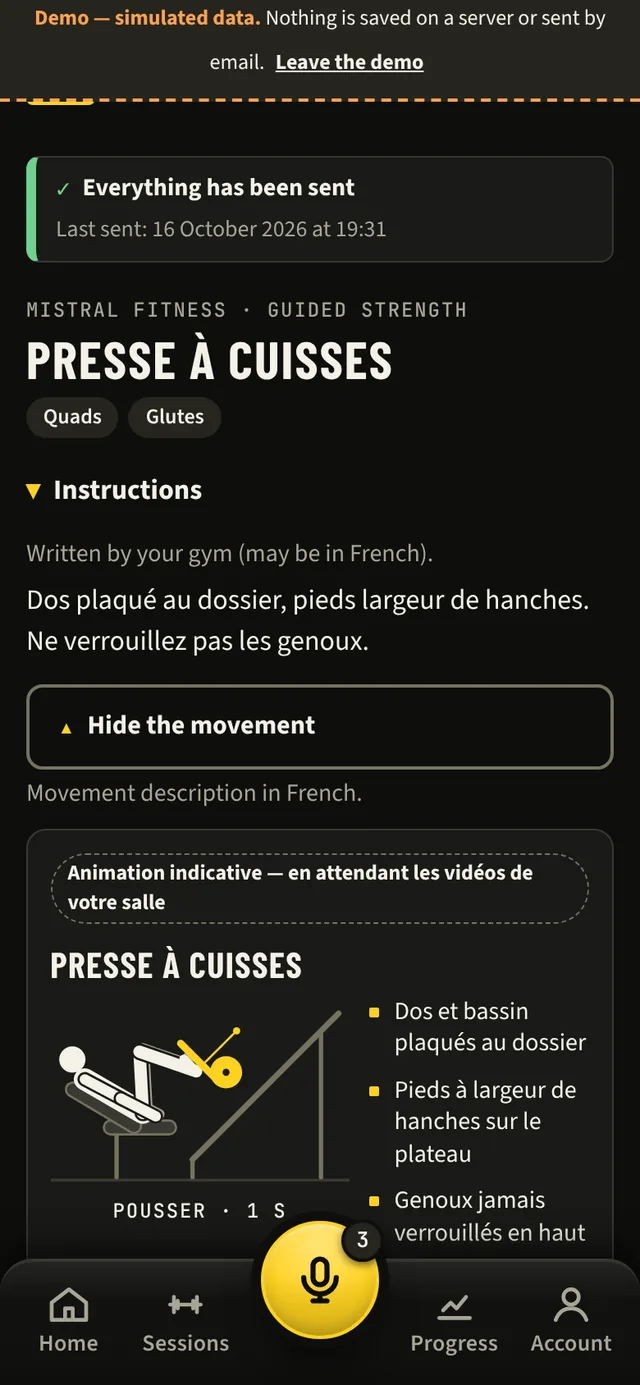
The right technique, animated.
“See the movement” shows an animated demonstration: a drawn figure, the cues to follow and the tempo, with a Pause button. These are indicative animations, with no one filmed; they do not replace advice from a coach at the gym.
The QR code on every machine
The whole machine, in one scan.
The scan opens the machine's page: what you need to know to do the exercise well, before logging your set.
-
In the app
Exercise and instructions
The name of the exercise, to choose on multi-exercise machines, and instructions written or approved by your team.
-
In the app
Muscles worked
The machine's muscle groups, which you confirm when you create its page.
-
In the app
Animated demonstration
“See the movement”: a drawn figure, the movement path and the tempo, with a Pause button.
-
In the app
Correct positioning
Two or three cues next to the animation: “back and hips flat against the backrest”, “never lock your knees”.
-
In development
Machine settings
Seat height, backrest, thigh pads, range of motion: each machine's own settings, entered once by your team.
-
In development
Mistakes to avoid
Common mistakes on the movement, in a few words, next to the cues.
General, indicative movement cues, never medical advice: in case of pain, the app refers the member to a coach at the gym or a health professional.
Ask the app a question
In the appA question mid-session? Just ask.
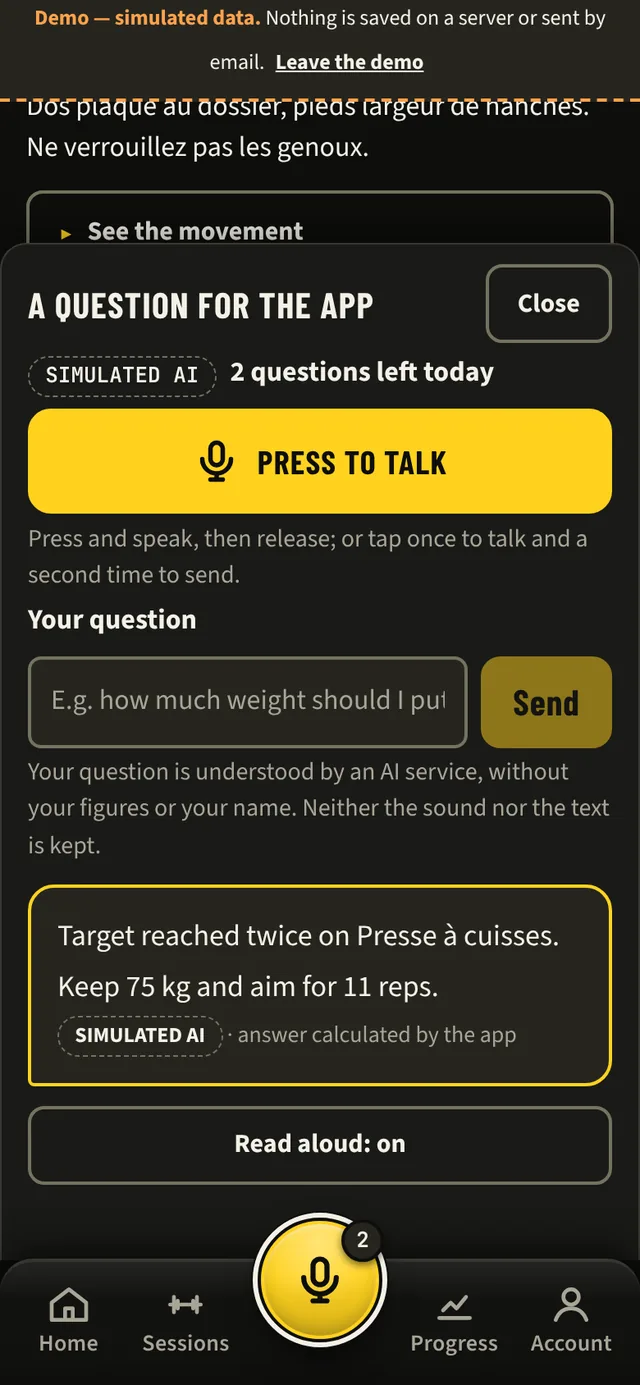
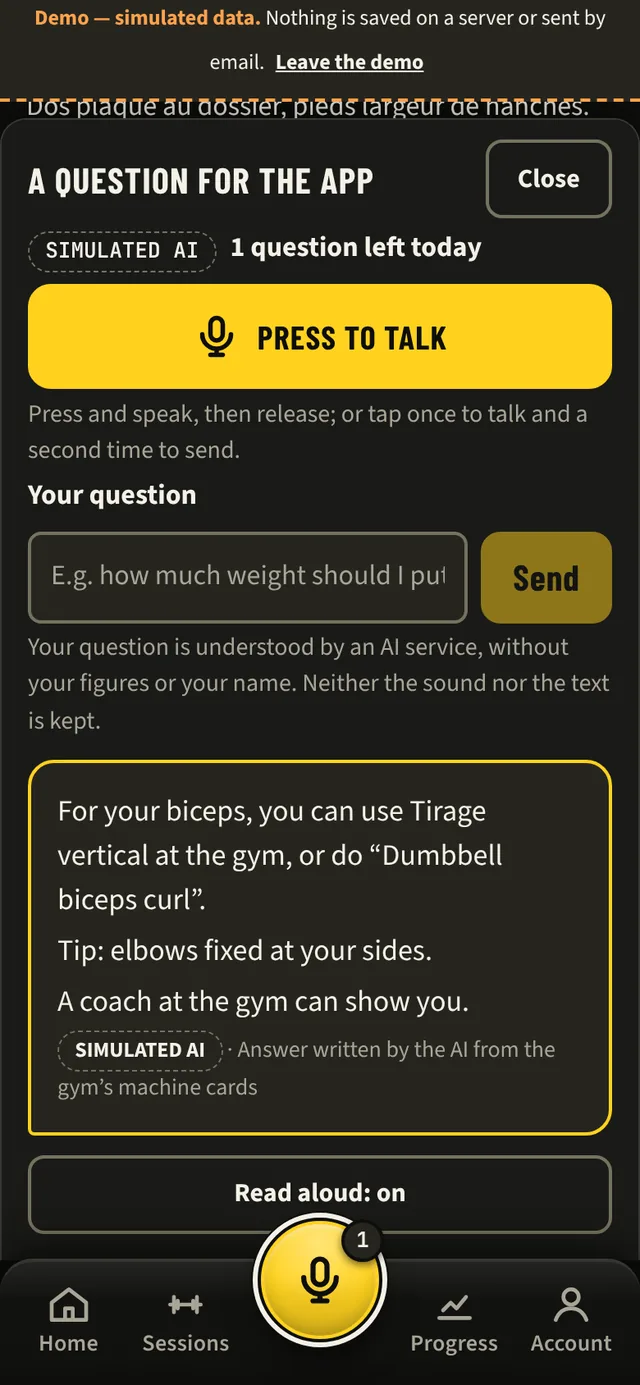
The mic sits in the middle of the bottom bar, bigger than the other buttons and raised: it stays within thumb's reach without ever hiding the button to log a set. Members press it, ask their question out loud or type it, and the app answers on screen and out loud.
For example
- “What weight should I use today?”
- “How long should I rest?”
- “The leg press is taken, what can I do instead?”
- “How do I set up this machine?”
- “Which exercise for biceps?”
- Weight, reps, rest: the app does the maths, from the member's history and with the same rules as the tip of the week. An AI only understands the question.
- General question (choosing an exercise, technique): a short answer written by AI from your club's exercise sheets, with no figures at all, and labelled as such.
- 3 questions a day per member during the pilot, a number your club can adjust.
No health questions are handled: for pain, injury or feeling unwell, the app invites the member to see a coach at the gym or a health professional. The mic only listens when pressed. GE2 Train neither receives nor keeps the voice: dictation is done by the phone (Google or Apple). The text of the question is not kept.
Your turn
Try the machine screen.
A simplified copy of the machine page, to get a feel for the two taps. This is not the app itself.
Demo: fictional data, simulated in your browser. Nothing is saved or sent.
Things to try
- Increase the weight with “+2.5”.
- Tap “Log the set”.
- Open “Week”, then “Tip”.
In the app, the set is sent to GE2 Train's servers, or waits until the connection returns. Here, it stays on this page and disappears when you close it.
Here, the tip comes from a demo rule, with no AI. In the app, the app works it out every week from all the sessions.
Fictional gym · guided weights
Leg press
- Quadriceps
- Glutes
Last time: 75 kg × 10 · 75 kg × 10 · 75 kg × 10, personal best: 75 kg
Today on this exercise
- No sets yet.
This week
Goal: 3 sessions
1 session out of 3. 2 more sessions by Sunday to hit your weekly goal.
My tip of the week
Log at least one set to see the rule in action.
Worked out by the demo: a simple rule, with no AI.
If you feel pain, stop the exercise and talk to a coach at the gym or a health professional.
Nobody has to use it: members who do not want the app train just as before.
What next?
See GE2 Train in your gym.
Thirty minutes, on your phone: the member journey first, then the gym owner area.